How many cameras can the farm's upload handle?
Download speed gets the headlines, but cameras live on upload. Here's how to work out how many your connection can carry, using the makers' own numbers and a test you run yourself.
Research-based, not tested on a farmWorks with any internet provider at the house.
Key takeaways
- Cameras use upload, not download, whenever they send video to the cloud or to your phone.
- Ring's guidance runs from 1 Mbps (720p) to 15 Mbps (4K) per camera; Arlo's from 1 to 3 Mbps. Add the cameras that can stream at once.
- Measure your own upload in the evening, three times, and use the lowest result. Don't plan from a brochure number.
- Keep about 30% headroom for everything else on the connection.
- Too many cameras? Lower resolution, use sub-streams for remote viewing, and record locally to an NVR instead of the cloud.
To work out how many cameras your connection can handle, add up the upload each camera needs, using the maker’s own figures, for the cameras that can stream at the same time. Then compare that total with the upload you measure yourself at a busy evening hour, and keep about 30% spare. Ring, for example, lists 2 Mbps of upload per 1080p camera and 10 Mbps per 2K camera. Four cameras can need anywhere from 4 to 40 Mbps depending on resolution, so the answer is a sum, not a single number.
Here’s how to do the sum properly, two worked examples, and what to change when the cameras need more than the connection has.
Why upload, not download
Internet plans are sold on download speed, but a camera sends video. Every live view from your phone, every motion clip saved to a cloud service, and every cloud-recorded minute goes up the connection’s upload side. Upload is usually much smaller than download on satellite, cable and cellular service alike.
Two kinds of camera traffic behave differently:
- Cloud cameras (Ring, Arlo, Wyze, eufy with cloud storage) upload clips when motion triggers them, plus live view when you open the app. Several cameras on a busy lane can all upload at once.
- Cameras recording to an NVR send video over the local network to the recorder. That doesn’t touch the internet at all. Upload is used only when you watch from away, and only for the streams you open.
That second point is the biggest lever you have. More on it below.
What each camera needs, per the makers
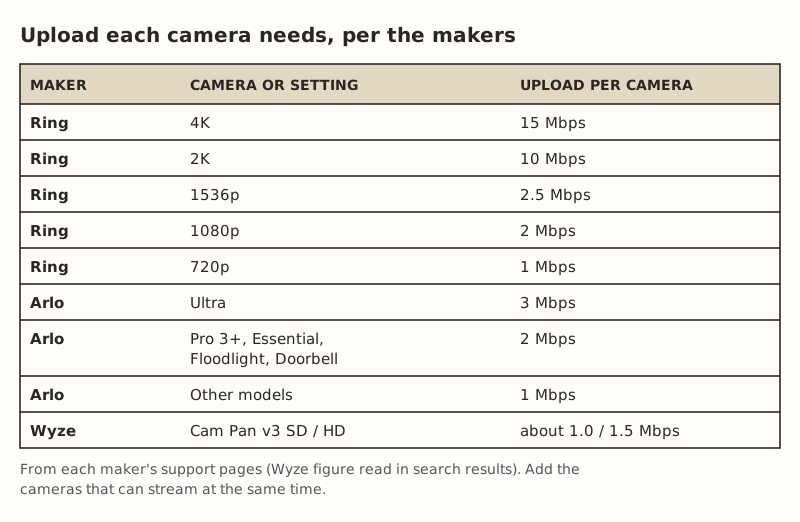
From the makers’ pages:
- Ring lists upload per device: 4K 15 Mbps, 2K 10 Mbps, 1536p 2.5 Mbps, 1080p 2 Mbps, 720p 1 Mbps. At least 1 Mbps for a device to work at all. Ring says to add the figures together for multiple devices.
- Arlo lists 3 Mbps for Ultra, 2 Mbps for Pro 3+, Essential, Floodlight and Doorbell, and 1 Mbps for other models.
- Wyze lists the Cam Pan v3 at about 1.0 Mbps for SD and 1.5 Mbps for HD. We read that in search results because the page blocked us.
For an NVR system, check the camera’s bitrate setting in its web page or app. That’s the upload a remote main-stream view uses.
Step 1: Measure your real upload
Don’t plan from a brochure range or a plan name. Speeds vary by location, by time of day and with the weather. Here’s how to get a number you can trust:
- Plug a laptop into the router with a cable, or stand next to the router with your phone.
- Run a speed test in the evening (roughly 7–10 pm), when shared networks are busiest.
- Do it on three different days.
- Write down the lowest upload result. That’s your planning number.
If you have Starlink, the app’s speed test and statistics are a good second view. The point is the same: measure, don’t assume.
Step 2: Add up the worst moment
The question isn’t how many cameras you have. It’s how many can upload at the same moment. On a farm, that moment is usually a deer or a truck coming down the lane and setting off every camera along it, or you opening a multi-camera live view.
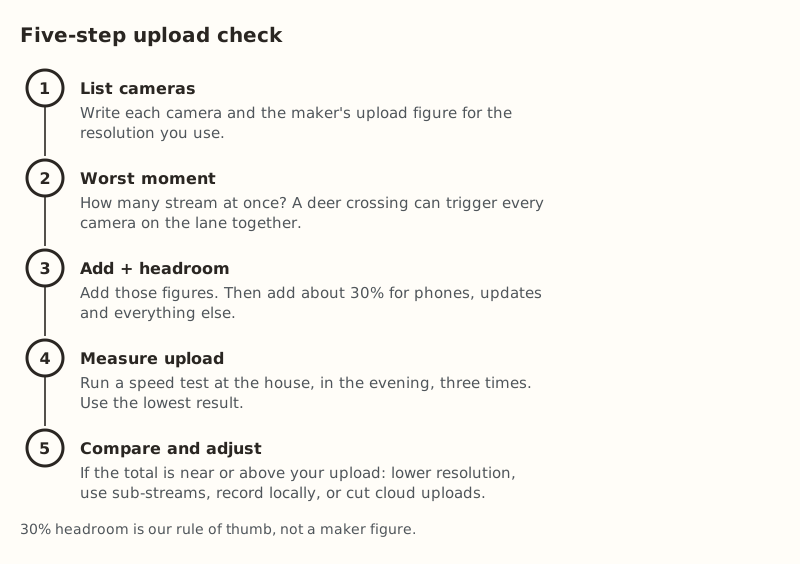
Add the figures for those cameras, then add about 30% for phones, computers, updates and anything else using the connection.
Worked example 1: four cloud cameras
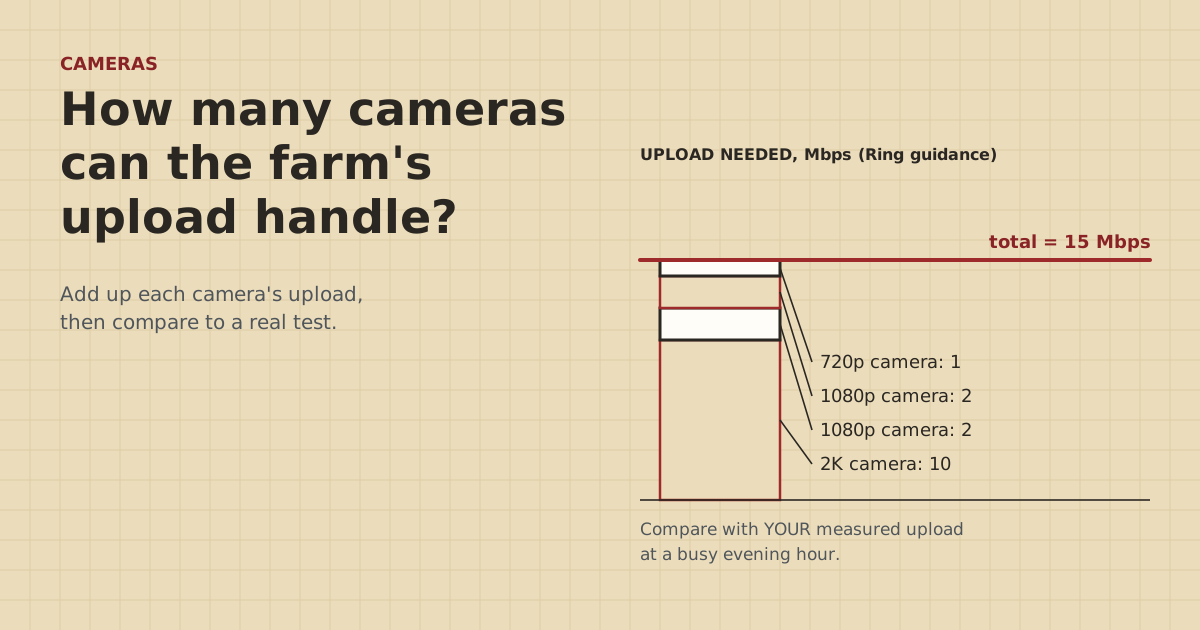
A farmhouse with four Ring-style cloud cameras: a 2K camera on the shop, two 1080p cameras on the barns, and a 720p camera at the gate.
| Camera | Upload (Ring guidance) |
|---|---|
| Shop, 2K | 10 Mbps |
| Barn 1, 1080p | 2 Mbps |
| Barn 2, 1080p | 2 Mbps |
| Gate, 720p | 1 Mbps |
| All four at once | 15 Mbps |
| Plus 30% headroom | about 20 Mbps |
If your lowest evening upload test is comfortably above 20 Mbps, you’re fine. If it’s around 15, the cameras will work most of the time but stutter during motion bursts or when someone’s on a video call. If it’s under 10, the 2K camera is the problem. Dropping it to 1080p cuts the total to 7 Mbps.
Worked example 2: eight PoE cameras on an NVR
The barn has eight PoE cameras recording 24/7 to an NVR, on a PoE switch ($44.99–$63.66 for a 5-port in our parts data; you’d need a bigger one for eight). Recording uses zero internet. Upload is only used when you view from away:
- Watching one camera full screen on the main stream: that camera’s main-stream bitrate, which is listed in its video settings.
- Watching all eight in a grid on sub-streams: eight small streams. Each uses the sub-stream bitrate shown in the camera’s settings, a fraction of the main stream.
- Pulling recorded clips back to your phone: as fast as the upload allows, so it competes with everything else.
This setup can run many more cameras than a cloud system on the same connection, because most of the video never leaves the farm.
When the cameras need more than you have
In order of how much they help:
- Record locally. Move continuous recording to an NVR or microSD, and use the cloud only for alerts or snapshots.
- Use sub-streams for remote viewing. Most NVR apps have a “fluent” or “SD” option. Use it by default, and tap up to HD only when you need detail.
- Lower resolution where detail doesn’t matter. A camera watching a pasture gate for movement doesn’t need 4K. A camera reading a plate at the lane might.
- Lower the bitrate or frame rate in the camera’s settings. 15 frames per second is usually plenty for security video.
- Tune motion zones so cows, wind and swaying branches don’t trigger uploads all day.
- Stagger cloud uploads if the system allows it, or turn off cloud upload on cameras that also record locally.
Data caps on your internet plan are a separate question. This site doesn’t cover plans, but a camera’s upload adds up over a month, so check your plan’s terms.
Edge cases that change the sum
- LTE and cellular trail cameras don’t touch the farm’s connection at all. They upload over their own cellular data plan. Leave them out of the sum. See trail cameras: cellular or Wi-Fi.
- Several people watching at once. With many NVR apps, each phone that opens a live view pulls its own stream from the farm. Two family members watching the calving pen on the main stream means two streams going up. Cloud cameras may handle this differently, but plan as if each viewer adds a stream.
- Pulling recorded footage after an incident. Downloading an hour of 4K playback from an NVR uses all the upload it can get for as long as it takes. Do it when nobody needs the connection, or export clips at a lower quality.
- Camera firmware updates and cloud backups. These are mostly downloads or short bursts, but a backup service sending a whole NVR’s footage offsite would be a huge, steady upload. Most farm NVRs don’t do that unless you set it up.
- Video calls and the cameras together. An evening video call uses upload too. That’s what the 30% headroom is for. If calls break up when a camera triggers, you’re at the limit.
- Weather and obstructions. Satellite and fixed-wireless upload can dip in heavy weather. If the cameras matter most in storms, size with the worst conditions in mind.
The barn link matters too
Upload at the house is the outer limit, but the link from the barn to the house has to carry the cameras too. A buried Cat6 run under 328 ft carries gigabit and won’t be the bottleneck. A wireless bridge usually won’t be either, unless trees have grown into its path. A consumer mesh node in the barn often is. If cameras buffer even when you’re on the farm Wi-Fi, look at the barn link, not the internet. See wireless bridge or a long cable.
Common mistakes
- Planning from download speed. Cameras care about upload.
- Planning from one midday test. Evening results are often lower.
- Counting cameras one at a time. Motion events trigger several at once.
- 4K everywhere. A 4K camera can need as much upload as several 1080p cameras.
- Leaving remote view on the main stream. That’s the full-quality stream. Use the sub-stream on a phone.
- Thinking an NVR uses the internet to record. It doesn’t. That’s why it’s the best fix.
What we don’t know
Real camera bitrates vary with the scene. A windy field or rain at night can raise the bitrate. Makers’ figures are guidance, not measurements of your setup. We haven’t run cameras on a farm connection. The owner-run camera tests at home will be posted on the gear tests page and labeled that way. We also don’t quote a Starlink upload number: published ranges differ by plan and source, and your own measurement is more useful than any of them.
Next step
Measure your upload three evenings in a row, list your cameras with the makers’ figures, and do the sum above. If remote viewing still fails even with enough upload, the problem is probably CGNAT, not bandwidth. See why port forwarding a camera fails on Starlink and which cameras work with Starlink. For power to the cameras themselves, see adding up PoE watts at night, or plan the run in the planner.
Go deeper
This post answers one question. The full guide covers the rest: Which security cameras work with Starlink? (camera types vs CGNAT, cloud-app vs local-only).
Questions people ask
How much upload speed do I need for security cameras?
Can Starlink handle security cameras?
Do cameras use upload or download?
Does recording to an NVR use internet bandwidth?
What is a sub-stream on a security camera?
Why does my camera buffer when I view it remotely?
Sources
- Ring: Understanding wifi recommendations for Ring devices, retrieved Oct 5, 2026
- Arlo: What are the minimum requirements for installing and using an Arlo system?, retrieved Oct 5, 2026
- Wyze Cam Pan v3 Tech Specs, retrieved Oct 5, 2026
- Category 6 cable - Wikipedia, retrieved Oct 5, 2026
- TP-Link TL-SG1005P (4 PoE+ ports, 65 W), retrieved Oct 5, 2026
Prices on this page are US retail ranges for named example parts, checked on the date shown, before tax and shipping. They change often.
Independent · not affiliated with SpaceX or Starlink. Links to Starlink’s plan pages use the site owner’s own referral link (your price is the same); there are no affiliate links (how we make money). It is general information, not electrical advice: where code applies, use a licensed electrician. Found an error? Tell us.