Why port forwarding a camera doesn't work on Starlink
You followed the camera maker's port-forwarding guide to the letter and the app still can't connect from town. It isn't your settings. Here's what's in the way and how to get around it.
Research-based, not tested on a farmWorks with any internet provider at the house.
Key takeaways
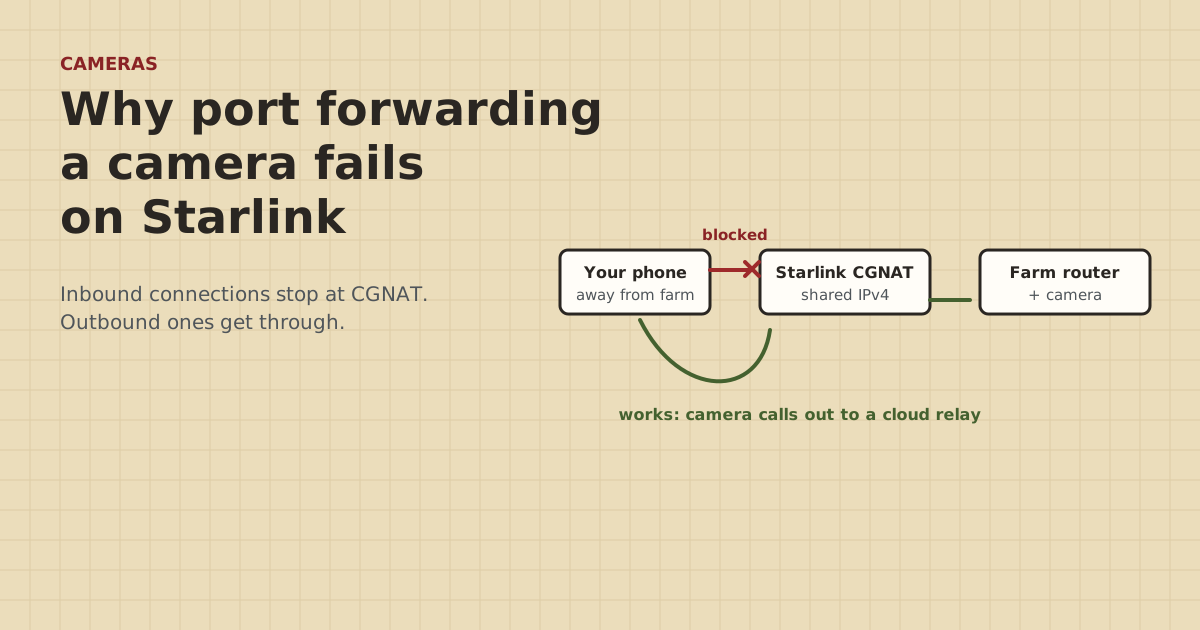
- By default Starlink shares public IPv4 addresses through CGNAT, which blocks all inbound ports. Port forwarding has nothing to forward from.
- The Starlink router can't port forward at all. Even your own router can't fix CGNAT on its own.
- Easiest fix: use the camera maker's app with its cloud or P2P connection, which reaches out instead of waiting for inbound connections.
- For NVRs and local-only cameras: a mesh VPN such as Tailscale on an always-on device at the farm. No ports needed.
- DDNS plus port forwarding is a dead end behind CGNAT. A public IPv4 comes only with certain Starlink plans.
Port forwarding a camera doesn’t work on Starlink because Starlink uses CGNAT (carrier-grade NAT) for IPv4 by default, and CGNAT blocks all inbound ports. Your router never gets a public address of its own to forward from. On top of that, the Starlink router can’t port forward at all. The fix is to stop relying on inbound connections. Use a camera app that connects out to the maker’s cloud, or put a mesh VPN like Tailscale on a device at the farm.
This post explains what’s actually happening, how to confirm it on your connection, and the fixes in order of effort.
What CGNAT does to a camera
At a typical home with cable or fiber, the router gets one public IPv4 address. Port forwarding tells the router: “when someone on the internet knocks on port 8000, send them to the NVR.” The camera maker’s guide assumes that setup.
On Starlink, the router doesn’t get a public IPv4 address. It gets a private address in the 100.64.0.0/10 range. Starlink’s own network shares public addresses among many customers, so it has no way to know which customer an unsolicited inbound connection is for, and it drops it. Starlink’s help page says CGNAT blocks all inbound ports.
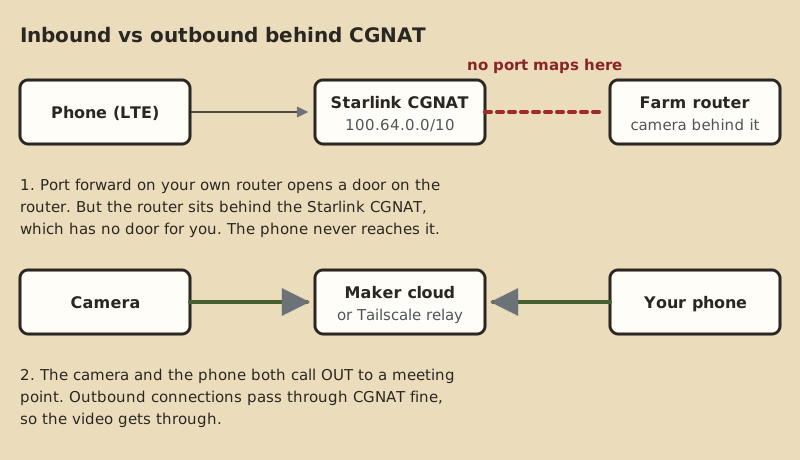
So there are two separate walls:
- The Starlink router has no port-forwarding feature. Starlink’s help says you’d need a third-party router and a public IP.
- Even with your own router, the public side of the connection is shared CGNAT. The forward opens a door on your router, but there’s no door in Starlink’s NAT in front of it.
How to confirm you’re behind CGNAT
You don’t have to take anyone’s word for it.
- In your router’s status page (or the Starlink app’s network details), find the WAN or internet IPv4 address.
- On a phone connected to the farm Wi-Fi, search “what is my IP” and note the public IPv4 shown.
- If the WAN address starts with 100.64 through 100.127, or doesn’t match the public address, you’re behind CGNAT.
That’s true on many cellular home internet services too, not just satellite. It’s why “it worked at our old place on cable” doesn’t carry over.
Which cameras work anyway
The good news: most consumer cameras don’t need port forwarding. They connect out to the maker’s servers, and your phone app connects out to the same place. Outbound connections pass through CGNAT fine.
| Camera setup | Behind CGNAT | Why |
|---|---|---|
| Reolink with UID/P2P on | Works | Reolink says UID allows remote viewing without port forwarding. The router only has to allow outbound UDP |
| eufy app or web portal | Works | eufy says not to open public ports. Remote viewing goes through the app or mysecurity.eufylife.com |
| Ring, Arlo (cloud cameras) | Generally works | They connect out to the maker’s cloud. Neither maker says “no port forwarding needed” in its own docs that we found, so that part is unverified |
| Hikvision with Hik-Connect | Works | Uses the maker’s cloud service |
| Hikvision direct IP access | Doesn’t work | Hikvision says direct access without Hik-Connect needs port forwarding or DDNS |
| Lorex DDNS (advanced) | Doesn’t work | Lorex says DDNS needs ports forwarded. Lorex Cloud is the alternative |
| Any NVR set to “local only” | Doesn’t work as-is | No outbound cloud connection to ride on |
The full compatibility rundown is in which security cameras work with Starlink.
The fixes, easiest first
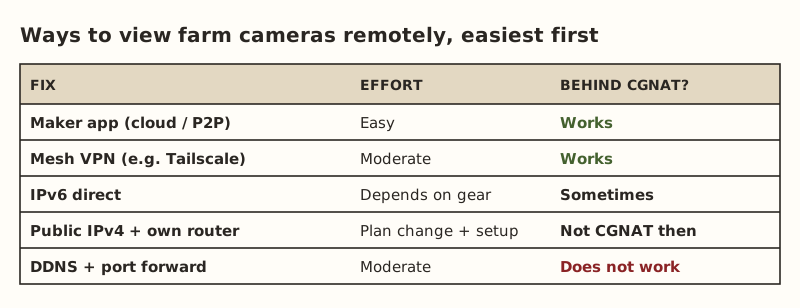
1. Turn on the maker’s cloud or P2P connection
Undo the port forward, then in the camera or NVR settings turn on the maker’s remote access feature: UID/P2P on Reolink, Hik-Connect on Hikvision, Lorex Cloud on Lorex, and so on. Add the device in the phone app by scanning its QR code or entering its ID. Test from your phone on cellular data, not the farm Wi-Fi.
Trade-off: your video passes through or is brokered by the maker’s service, and you’re relying on that service staying up. For most farms it’s the right call.
2. A mesh VPN such as Tailscale
If the cameras or NVR are local-only, or you’d rather not use the maker’s cloud, a mesh VPN connects your phone to the farm network directly. Tailscale devices use NAT traversal to set up a direct encrypted tunnel, and fall back to Tailscale’s relay servers when a direct path isn’t possible. No ports are opened. Tailscale’s own write-up on NAT traversal covers CGNAT specifically and says asking users to open ports “is not very user friendly”.
What you need: an always-on device at the farm that can run Tailscale. That can be some NVRs, a small computer, or a router that supports it, set up as a “subnet router” so you can reach the camera’s local address. Then install Tailscale on your phone. The remote viewing guide has the steps. This is for viewing cameras. Using a VPN for remote work is a different topic.
3. IPv6
Starlink gives your network IPv6 addresses, and IPv6 works on all Starlink routers. In theory, IPv6 skips CGNAT because every device gets a globally routable address. In practice, every link has to support it: the camera or NVR, its app, your router’s firewall settings, and the network your phone is on when you’re away. Some mobile carriers and public Wi-Fi networks still hand out IPv4 only. Treat IPv6 as worth a try if you’re comfortable with firewall rules, not as the main plan.
4. A public IPv4 address
Starlink says a public IPv4 comes only with its Local and Global Priority plans. Even then the Starlink router can’t port forward, so you’d need your own router in bypass mode. Plan costs aren’t covered here. Ask whether options 1 or 2 already solve your problem first, because they usually do. See bypass mode and cameras.
Dead ends to skip
- DDNS. A dynamic DNS name points to an address. Behind CGNAT that address is shared, with no route back to you. Lorex says its DDNS option needs forwarded ports, which can’t work behind CGNAT.
- UPnP. It asks your router to open a port. Same problem: Starlink’s NAT is still in front.
- Changing ports. Forwarding 8000, 80, 443 or 554 makes no difference. Hikvision lists HTTP 80, server 8000 and RTSP 554 as the ports to forward for direct access. None of them reach you behind CGNAT.
- Double-checking the forward over and over. If the WAN address is in the 100.64 range, the forward isn’t the problem.
Worked example: an NVR in the barn, viewing from town
The setup: an 8-channel NVR in the barn office, four PoE cameras, Starlink at the house, a buried cable from the house to the barn. The installer set up port forwarding on a third-party router in bypass mode. It works on the farm Wi-Fi but not from town.
- Check the router’s WAN address: 100.x.x.x. That’s CGNAT. Port forwarding can’t work.
- Remove the port-forward rules and turn UPnP off. Open ports on a home router are a risk with no benefit here.
- The NVR supports the maker’s cloud service. Turn it on and add the NVR in the phone app by QR code.
- Test from the phone on cellular. Live view works. Playback of recorded clips is slower: it depends on the farm’s upload. See how many cameras the farm’s upload can handle.
- Optional: install Tailscale on a small always-on computer in the barn as a backup path, in case the maker’s service has an outage.
Common mistakes
- Testing on the farm Wi-Fi. It works locally because you never leave the network. Always test on cellular data.
- Leaving old port forwards and UPnP on. They don’t help behind CGNAT, and if your connection ever gets a public IP, they expose the camera.
- Default passwords. Change them on every camera and NVR, whatever the remote-access method.
- Buying a local-only NVR system for a CGNAT farm without a plan. Check that it supports the maker’s cloud or can run alongside a mesh VPN.
- Blaming the bridge or the barn cable. If cameras work locally, the link to the barn is fine. Remote access is a separate problem.
What we don’t know
Camera makers change their apps and cloud features. Our compatibility notes come from each maker’s support pages, checked on the dates in the sources below, not from tests on a farm. We found no Ring or Arlo statement that port forwarding isn’t needed, so those rows are marked unverified even though both are cloud cameras. The owner-run camera tests behind a home CGNAT connection will be posted on the gear tests page and labeled as such.
Next step
Check your WAN address to confirm CGNAT. Then turn on your camera maker’s cloud or P2P feature and test from cellular. If your gear is local-only, follow the Tailscale steps in viewing cameras remotely behind CGNAT.
Go deeper
This post answers one question. The full guide covers the rest: Viewing cameras remotely behind CGNAT (three fixes, easiest first: the maker's app, a mesh VPN like Tailscale, or IPv6).
Questions people ask
Can you port forward on Starlink?
How do I view my security cameras remotely with Starlink?
Does Starlink use CGNAT?
Will bypass mode let me port forward on Starlink?
Do Ring cameras work with Starlink?
Does DDNS work with Starlink?
Is IPv6 a fix for remote camera viewing on Starlink?
Sources
- Starlink Help: What IP address does Starlink provide?, retrieved Oct 5, 2026
- Starlink Help: Can I port forward with the Starlink router?, retrieved Oct 5, 2026
- Starlink Help: Can I add a third-party router or mesh system?, retrieved Oct 5, 2026
- Reolink Support: How to Enable UID for Reolink Products, retrieved Oct 5, 2026
- eufy: How to Remotely View Security Cameras on App or Web, retrieved Oct 5, 2026
- Hikvision USA: What options do I have for remote access, other than Hik-Connect?, retrieved Oct 5, 2026
- Lorex NR900X manual: DDNS Setup (Advanced), retrieved Oct 5, 2026
- Ring: Protocols and Ports Used by Ring Devices, retrieved Oct 5, 2026
- Tailscale Docs: Connection types, retrieved Oct 5, 2026
- Tailscale blog: How NAT traversal works, retrieved Oct 5, 2026
Prices on this page are US retail ranges for named example parts, checked on the date shown, before tax and shipping. They change often.
Independent · not affiliated with SpaceX or Starlink. Links to Starlink’s plan pages use the site owner’s own referral link (your price is the same); there are no affiliate links (how we make money). It is general information, not electrical advice: where code applies, use a licensed electrician. Found an error? Tell us.